Walkthrough
One job, followed from the booking to the certificate to the customer.
Screens from a demo company, Kerova Demo Ltd. The names and sites are fictional; the references, verdicts and figures are real output from the system. Three kinds of people use Kerova — the office, the engineers, and the customers — and this follows a single job through all three.
90-second overview, silent. The two longer walkthroughs below follow one job step by step.
A day in the life (3½ min, silent)
Admin books the job → engineer on site → customer portal.
Feature tour (4 min, silent)
One screen per feature, ending in the customer portal.
A day in the life
An overdue site gets booked, done, and shown to the customer — the same day.
-
Step 1 of 9
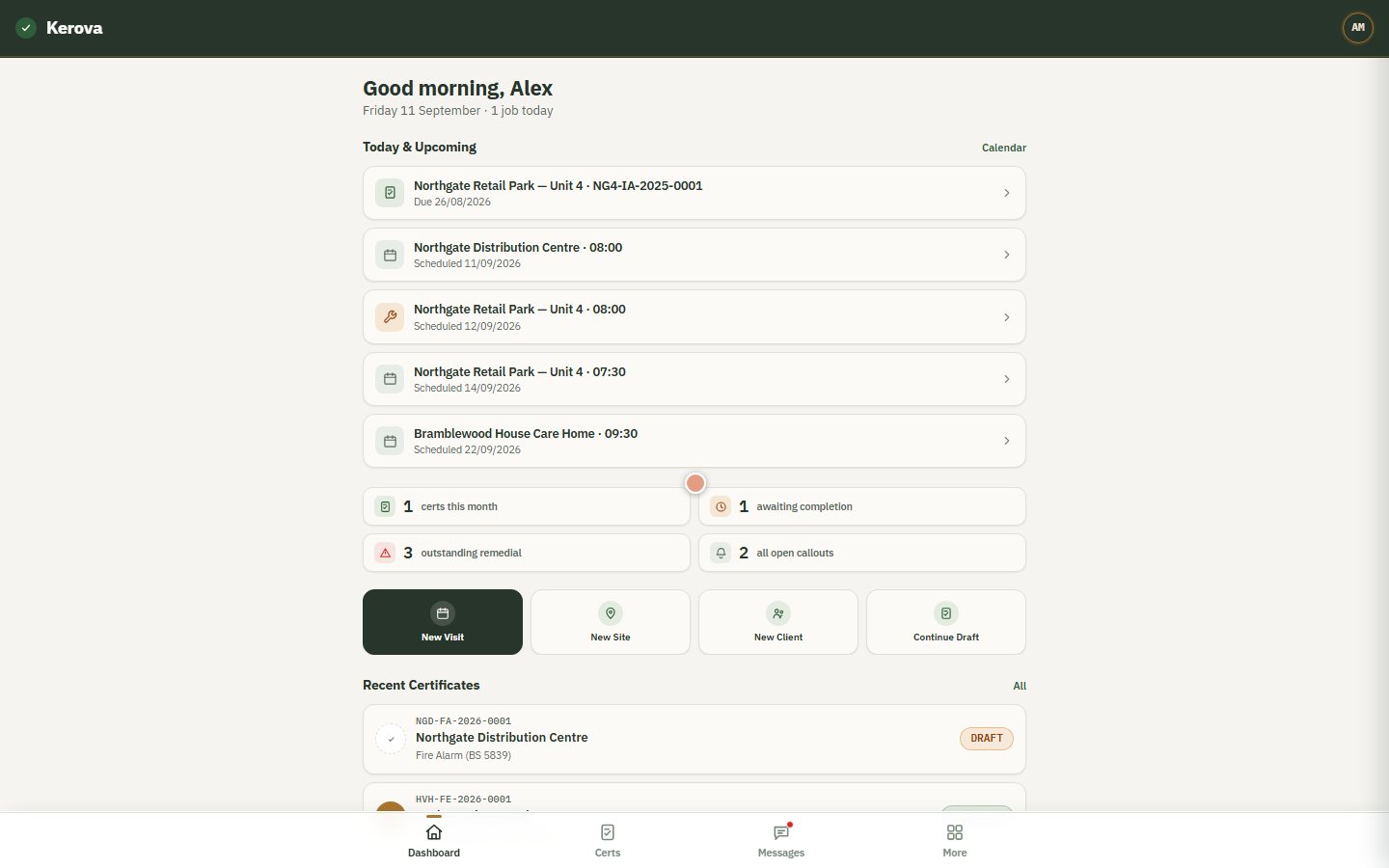
The office starts the day here
Alex, the admin, sees what's due, what's booked and what's outstanding — live figures from the company's own records, not a report someone compiled.
-
Step 2 of 9
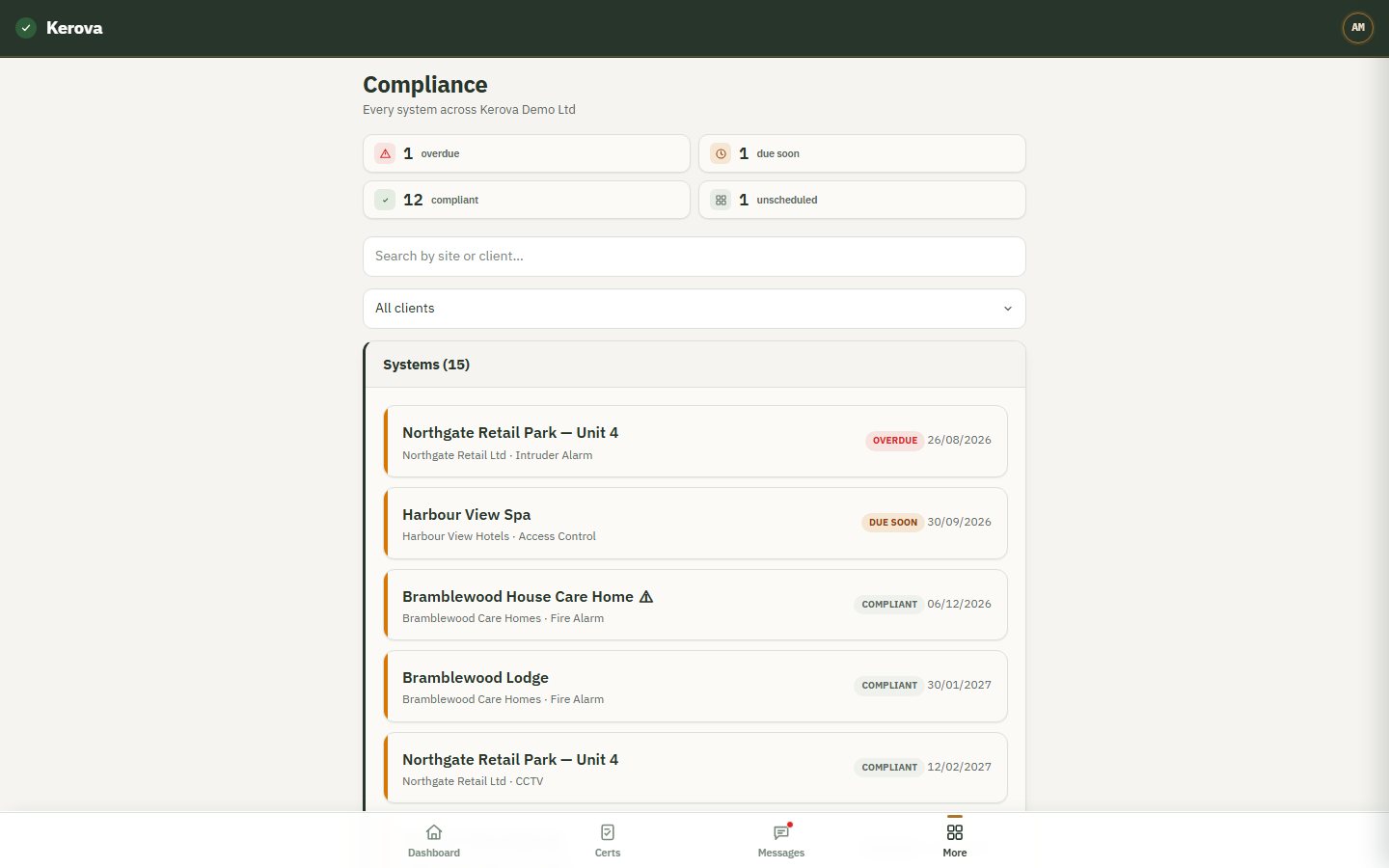
Every system, sorted by what needs doing
Fifteen systems across six sites. One intruder alarm is overdue; one access control system is due in three weeks. Nothing lives on a spreadsheet.
-
Step 3 of 9
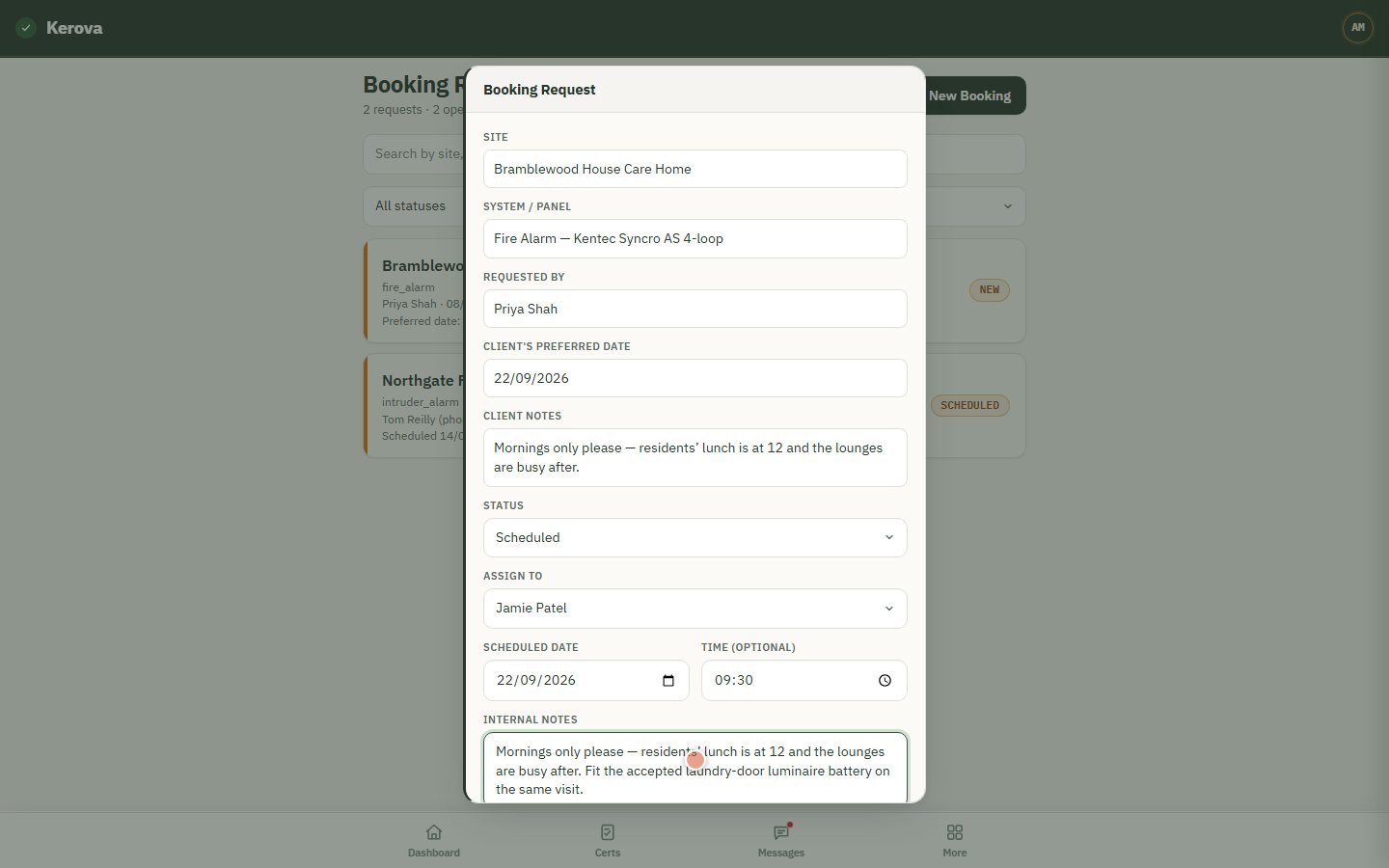
A customer's booking request, scheduled
Priya asked for her fire alarm service from her portal and said mornings only. Alex assigns Jamie, picks the date and time, adds a note for the engineer. Only the office can book work in.
-
Step 4 of 9
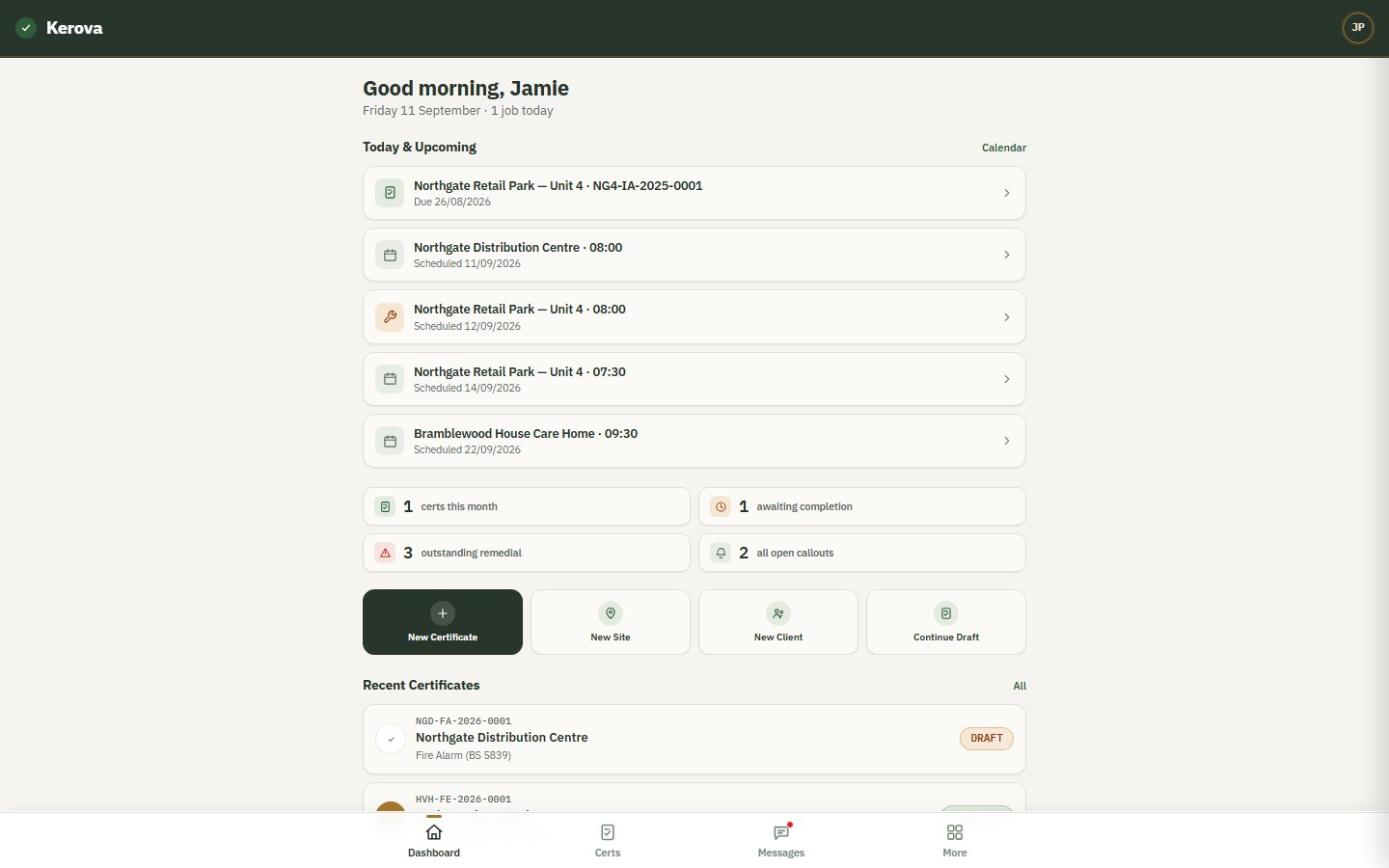
The engineer's day, already laid out
Jamie signs in on the phone: sites, times, and what to take. Nothing to look up.
-
Step 5 of 9
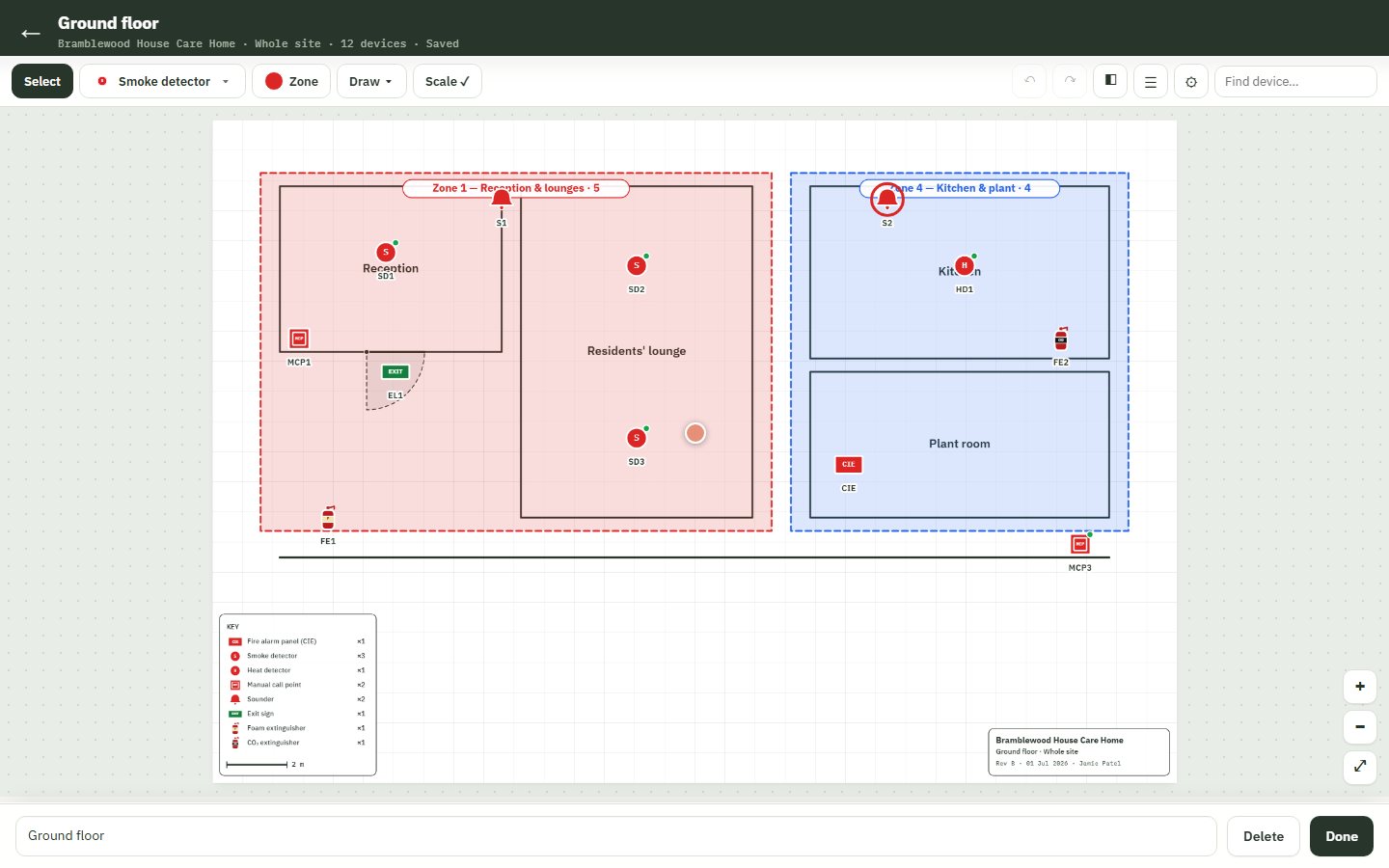
The zone plan
Rooms drawn, every device placed — detectors, call points, sounders, extinguishers, the panel — and zones colour-coded. The red sounder was inaudible over the kitchen extract fan.
-
Step 6 of 9
A 360° photo of the room
Tap a room and look around it. Captured in the app with just a phone — the next engineer, or an auditor, can see the room without being there.

-
Step 7 of 9
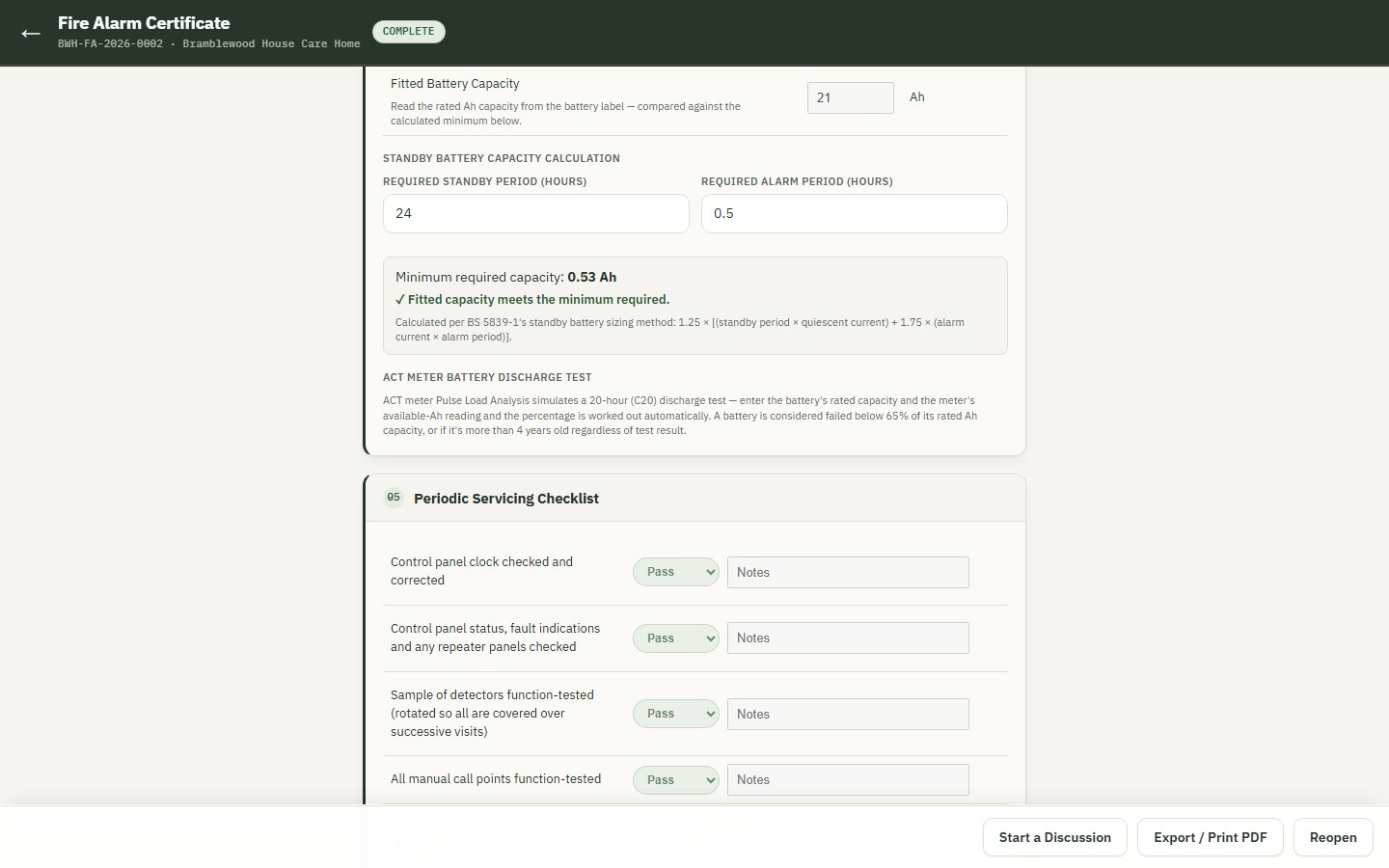
The certificate, done on site
Panel details, every zone tested, meter readings, and the defects found — each with a recommendation. The verdict is worked out from the findings; once complete, the certificate is locked and tamper-evident.
-
Step 8 of 9
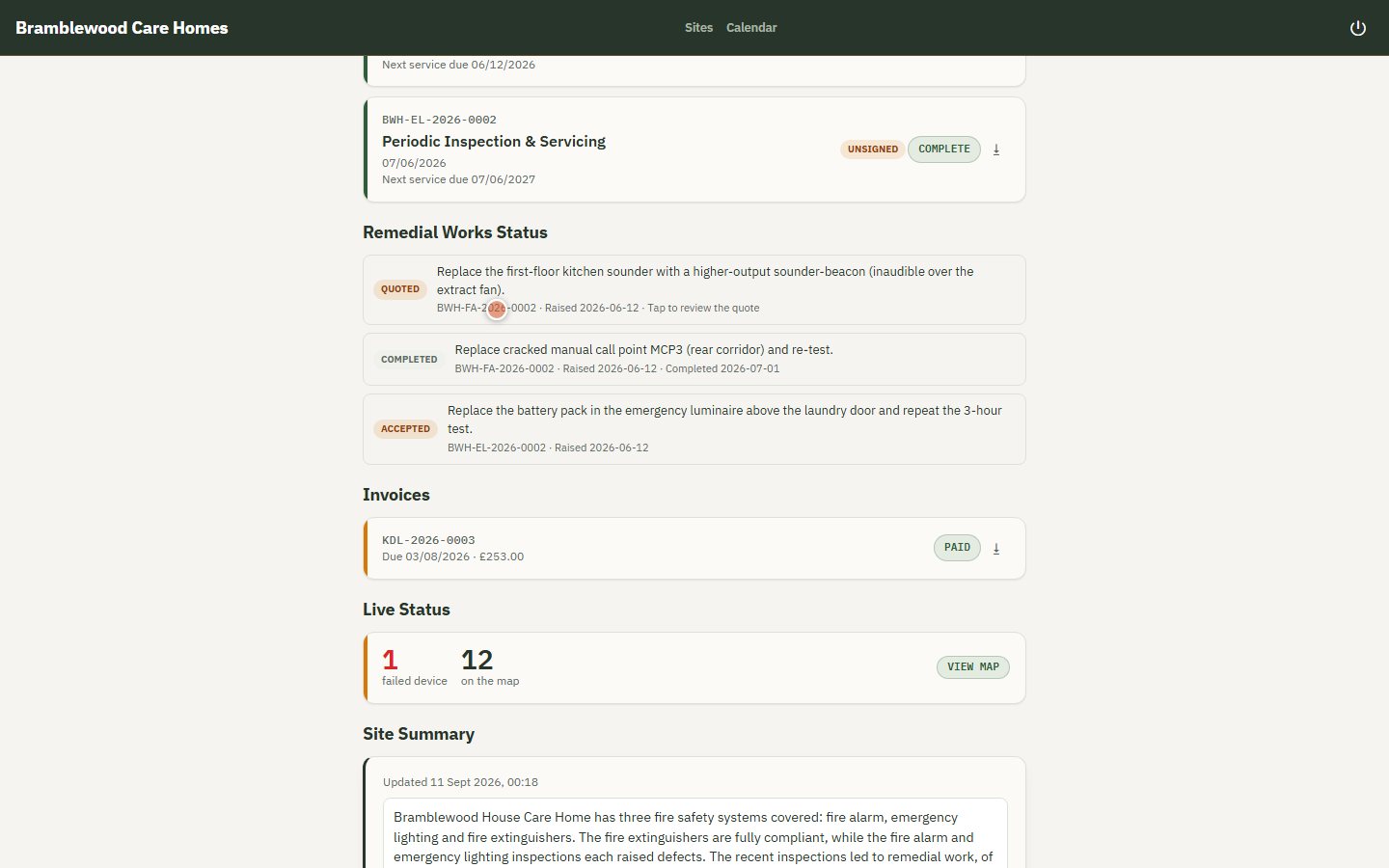
The customer's own portal
Priya sees her sites, each system and when it's next due, certificate history, remedial work and where each item stands, invoices — read-only.
-
Step 9 of 9
A plain-English site summary
Written from every note, certificate, callout and job — and every point shows the record it came from. The customer's version leaves the internal notes out.
Everything else
The rest of the toolkit
-
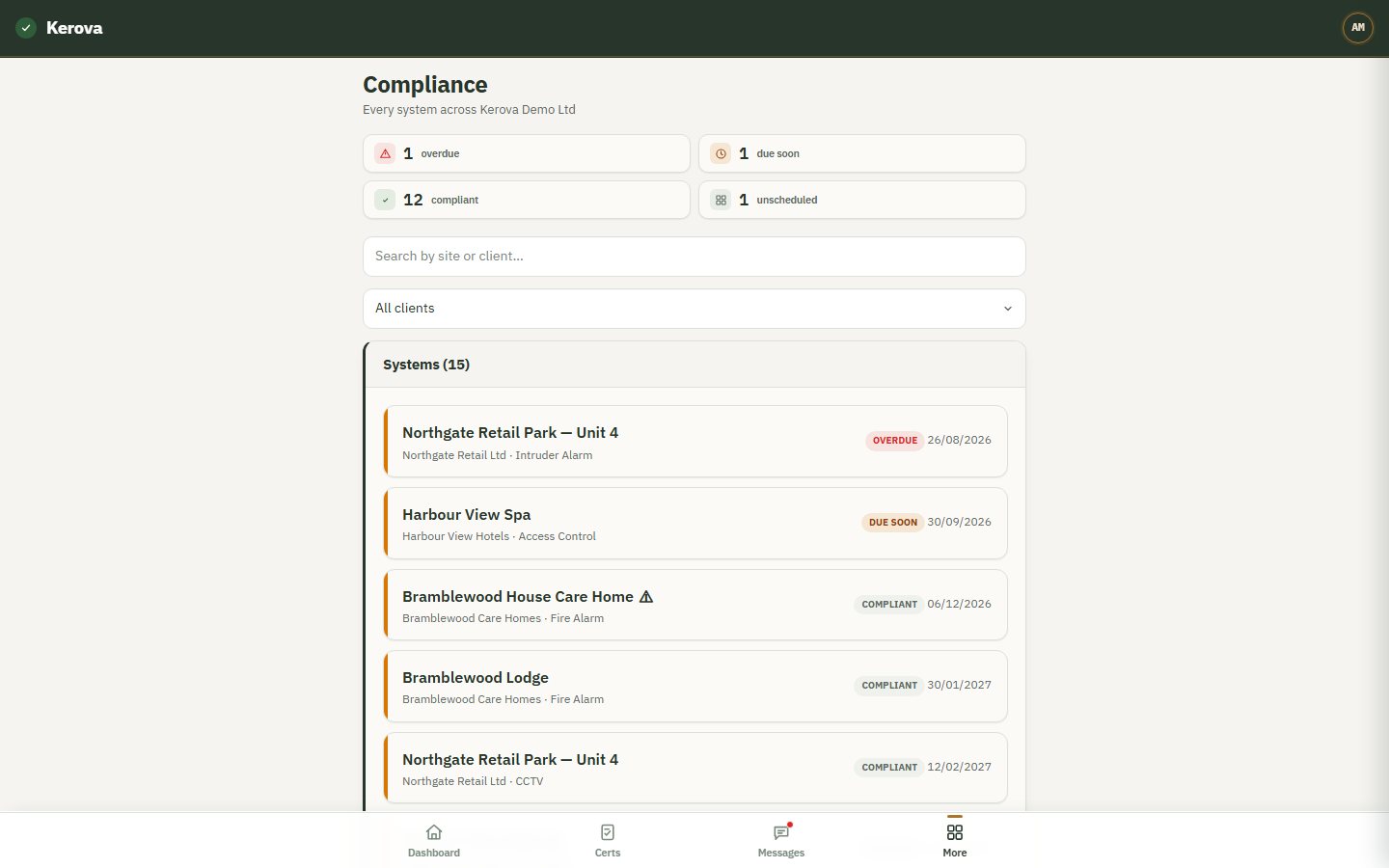
Compliance
Every system across every site, overdue and due-soon first. Filter by customer before a review meeting.
-
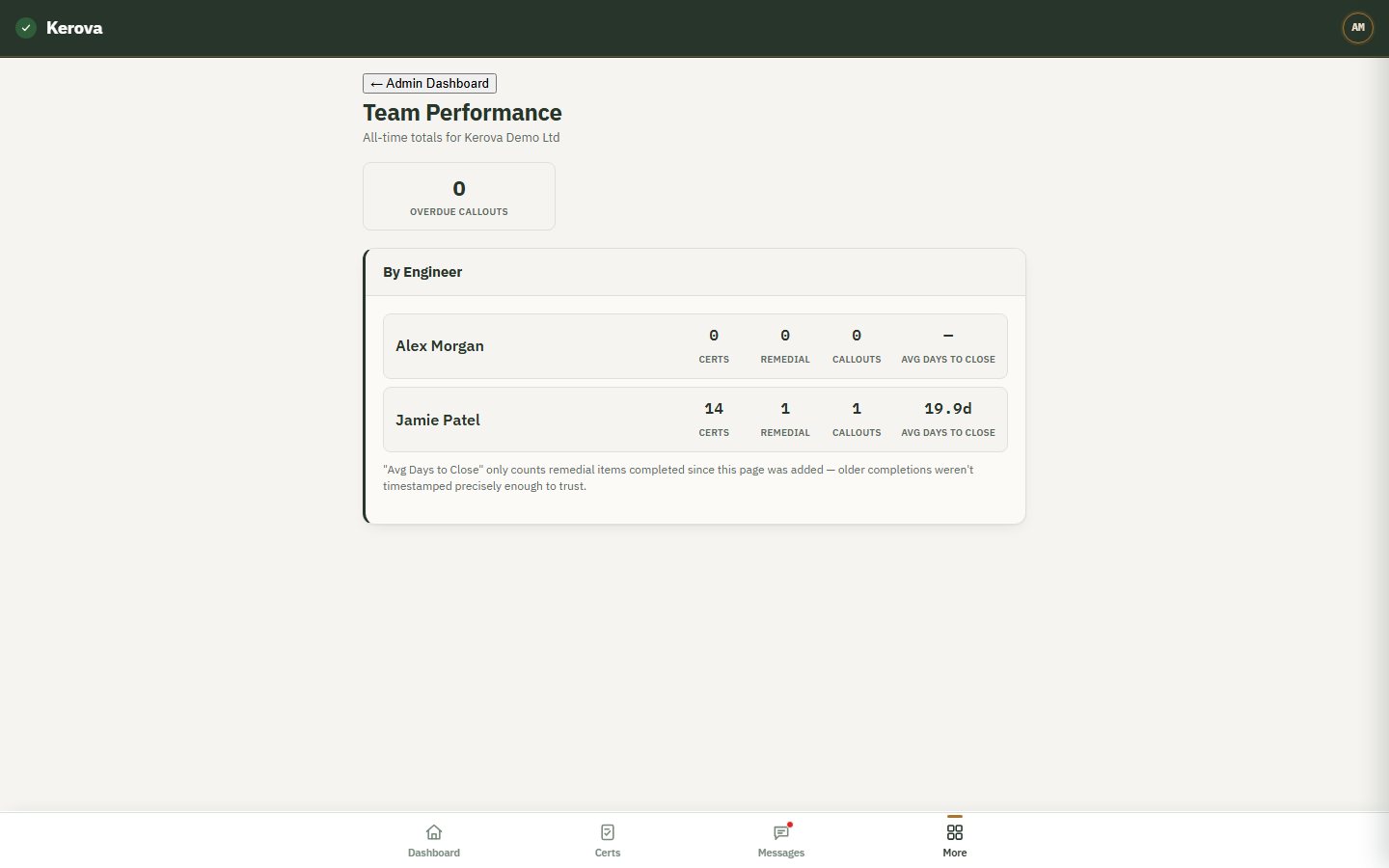
Team performance
Certificates, remedial jobs and callouts per engineer, and how fast remedial work closes.
-
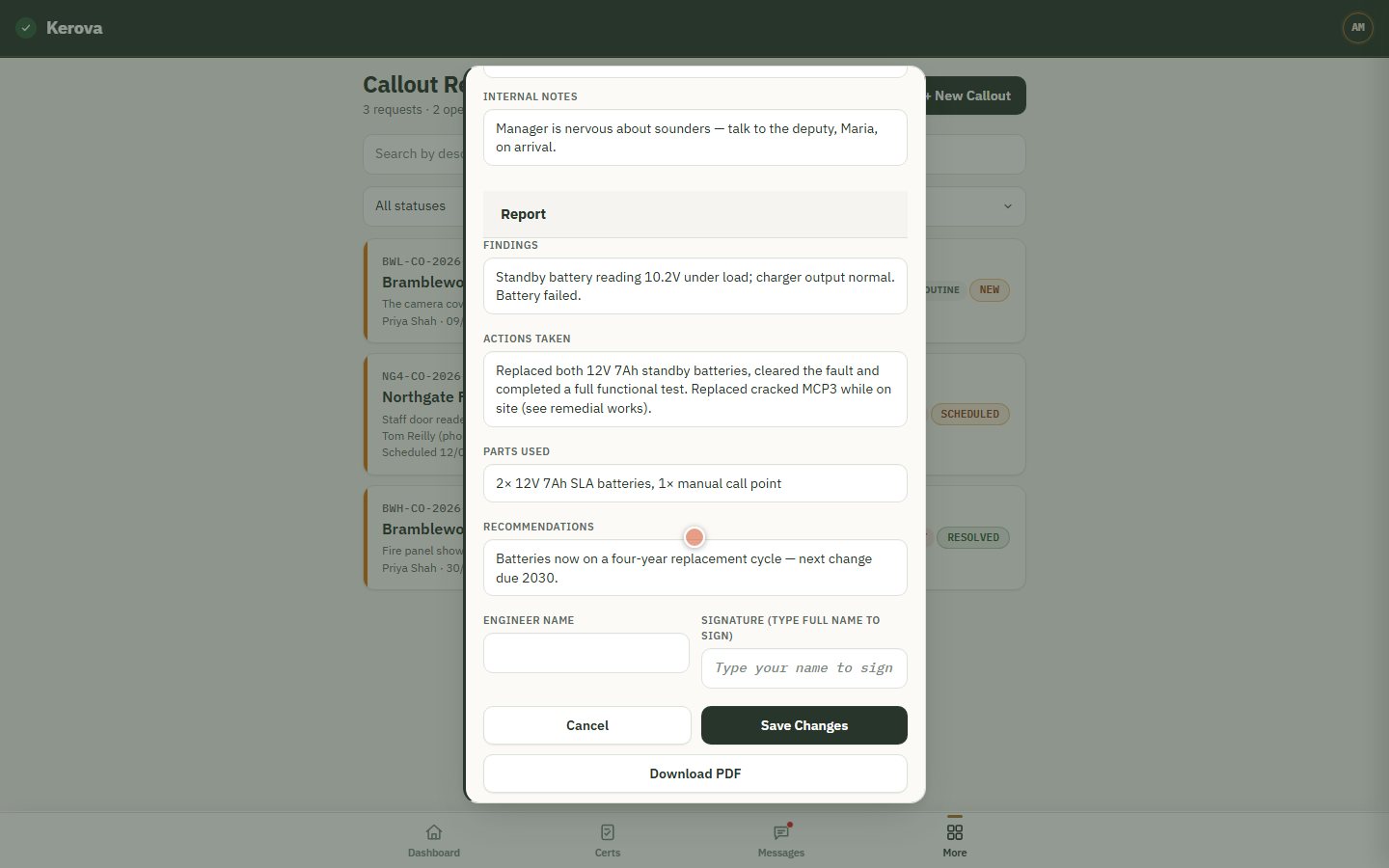
Callouts with reports
Raised by the office or the customer; scheduled; resolved with findings, actions, parts and recommendations.
-
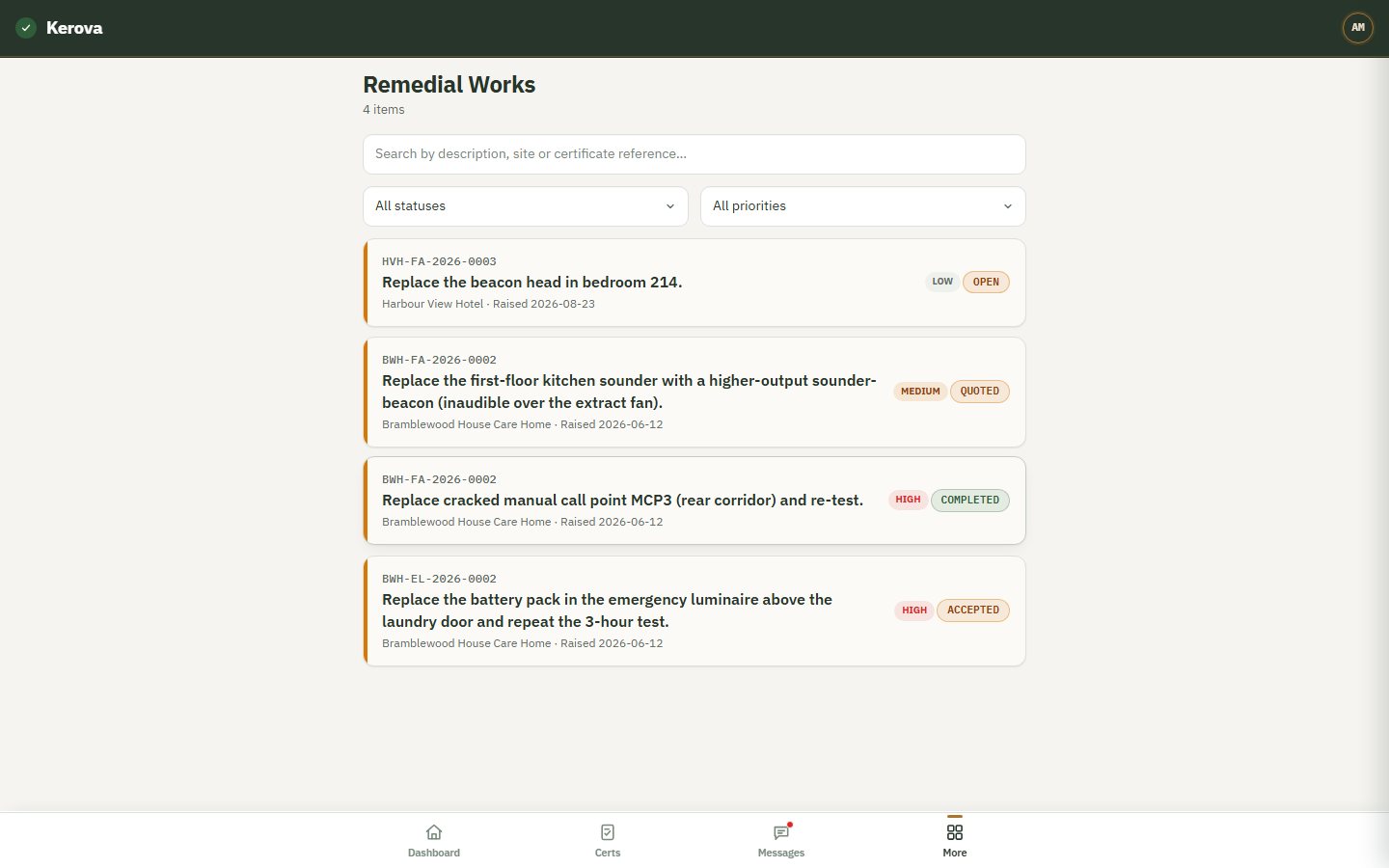
Remedial works
Each defect becomes a tracked item — open, quoted, accepted, in progress, completed — visible to the customer.
-
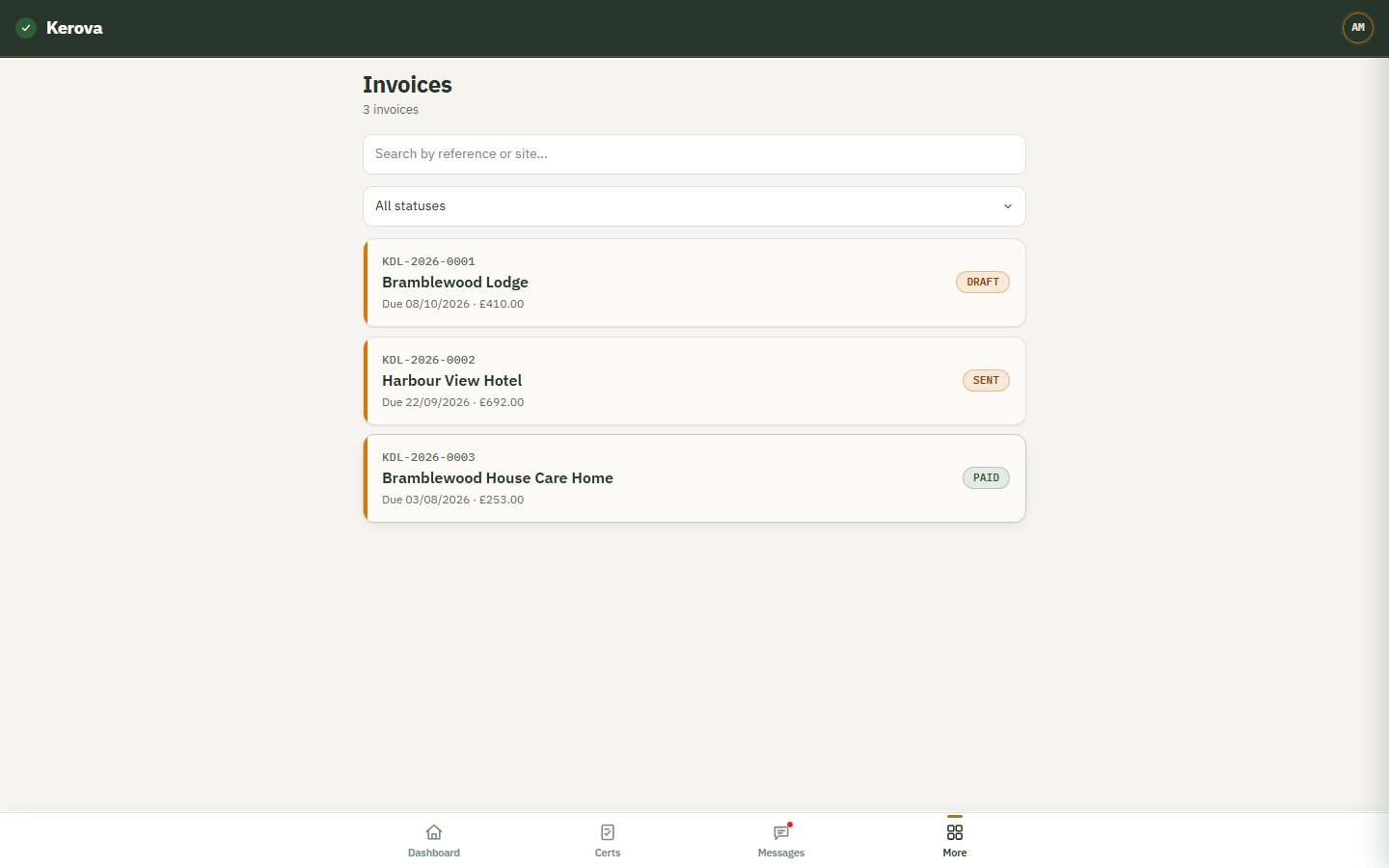
Invoices
Raised against the work, numbered automatically, synced to Xero. Draft, sent, paid.
-
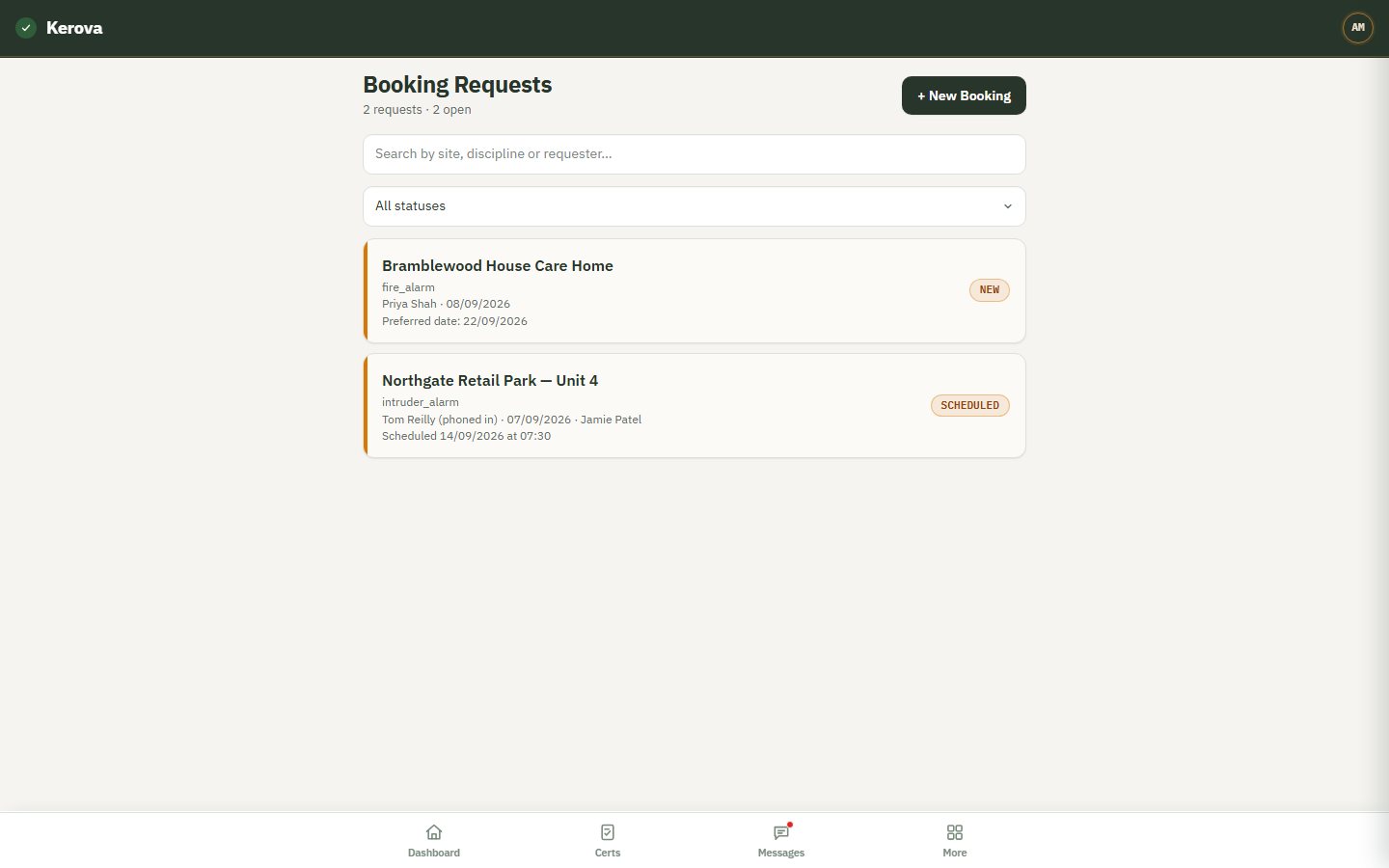
Booking requests
Customer requests and phone bookings in one inbox, scheduled by the office.
-
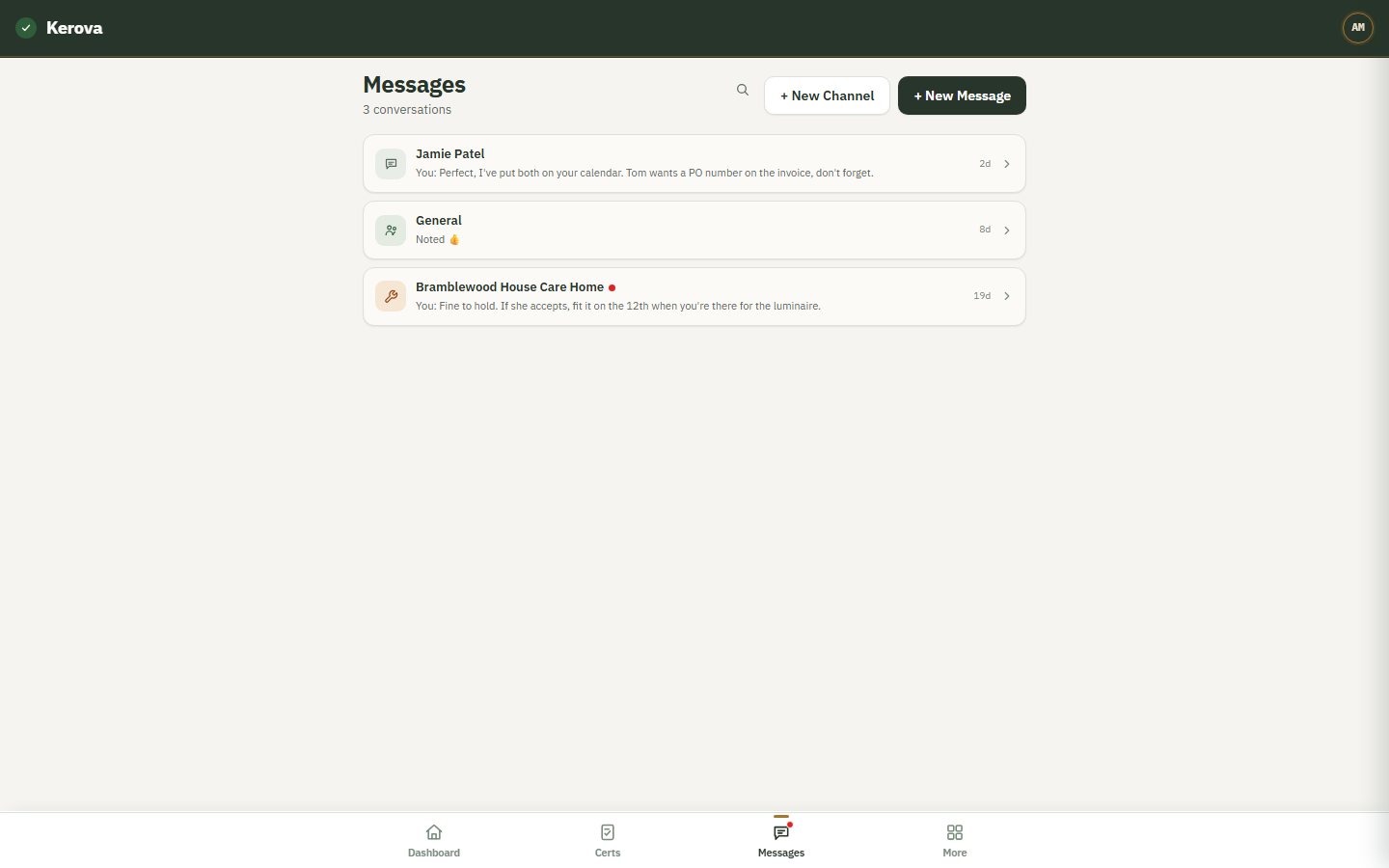
Messages
Direct messages, a thread per site, company channels — inside the record, not on WhatsApp.
-
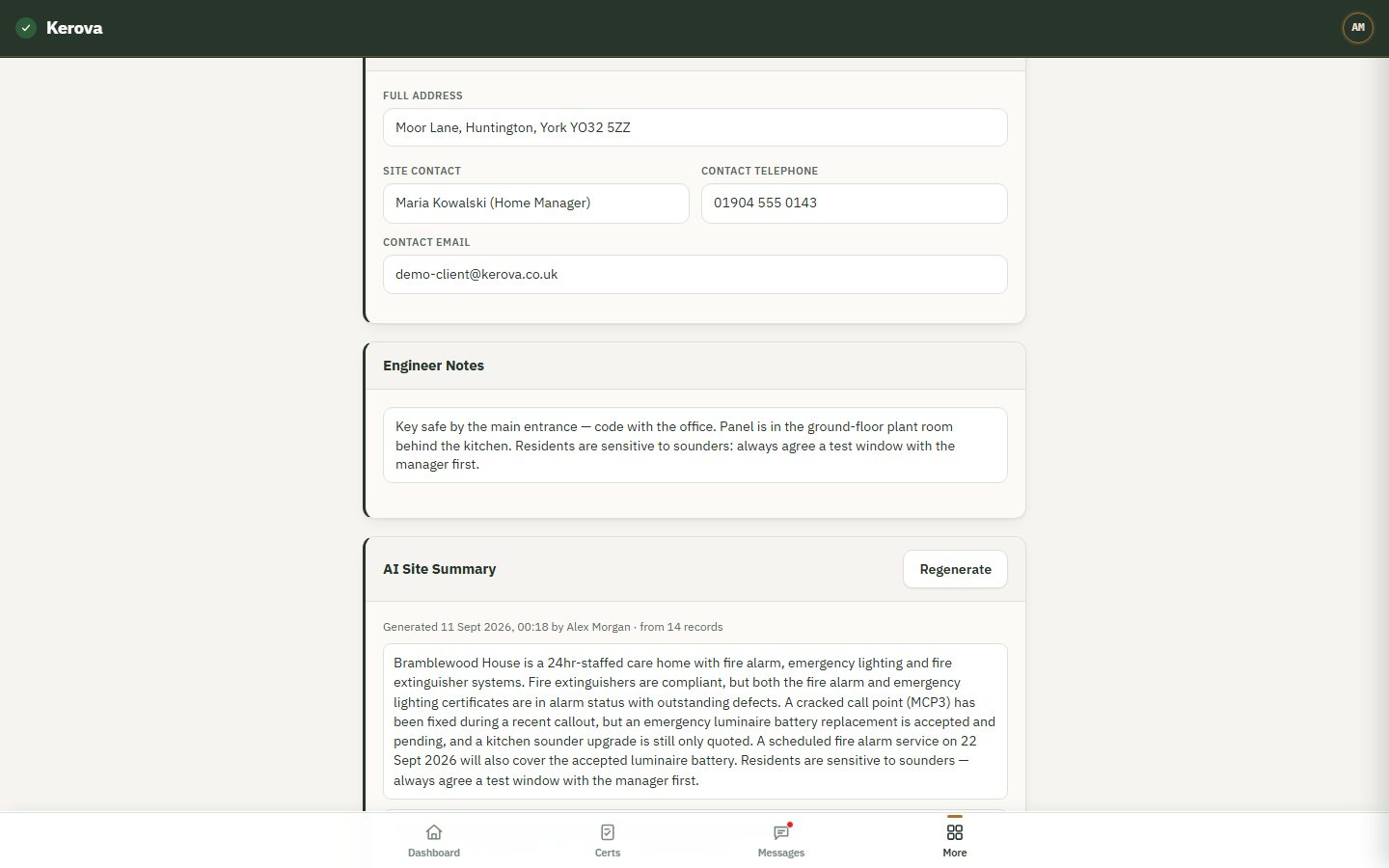
AI site summary
One button reads everything about a site and writes a summary with a source under every point.
-
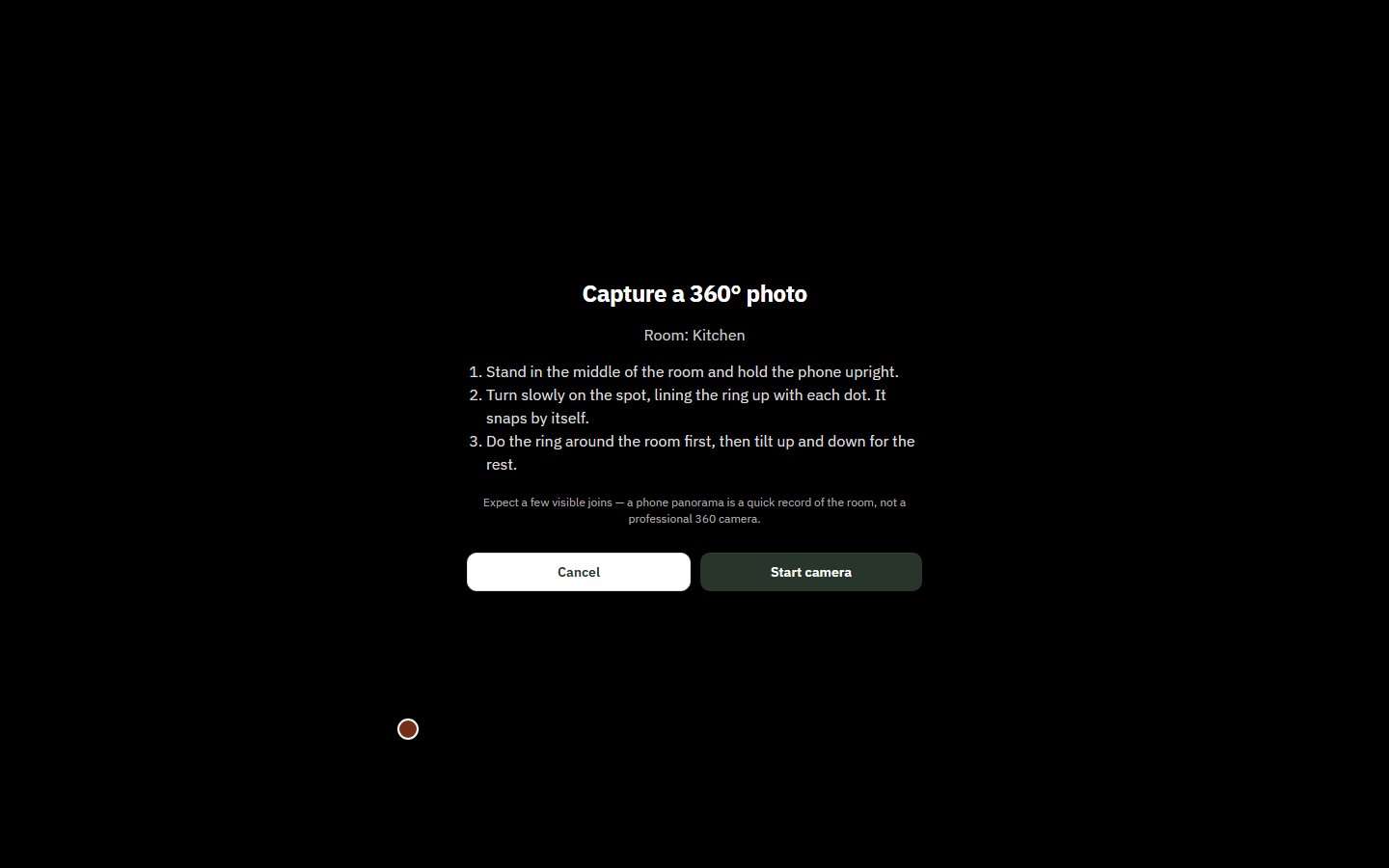
Guided 360° capture
Hold the phone up, turn slowly, it snaps by itself — or upload from a 360 camera.
-
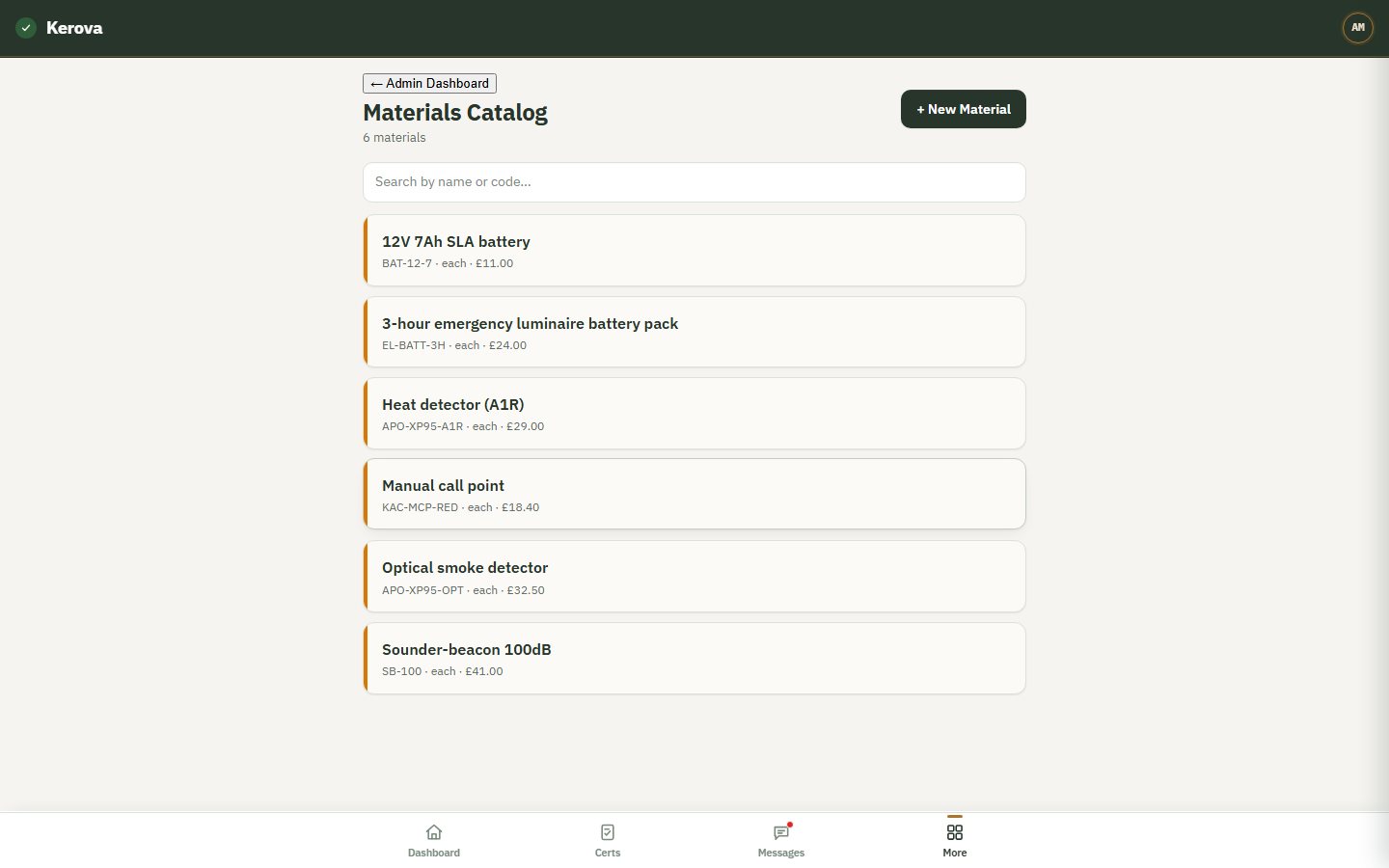
Materials
Your parts and prices, so engineers record what they used and quotes add up.
-
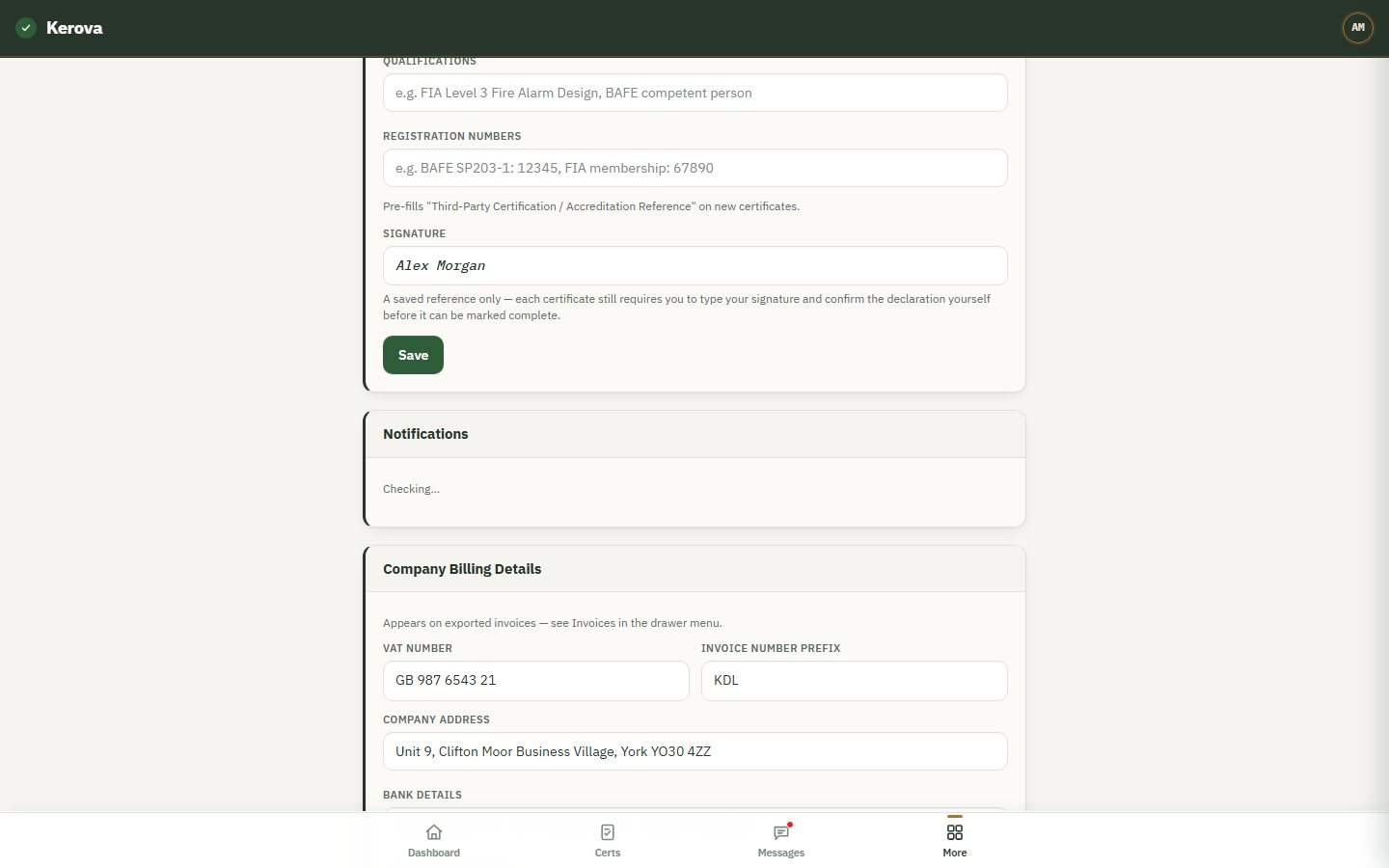
Push notifications
New callouts, jobs assigned, messages and reminders, straight to the engineer's phone.
-
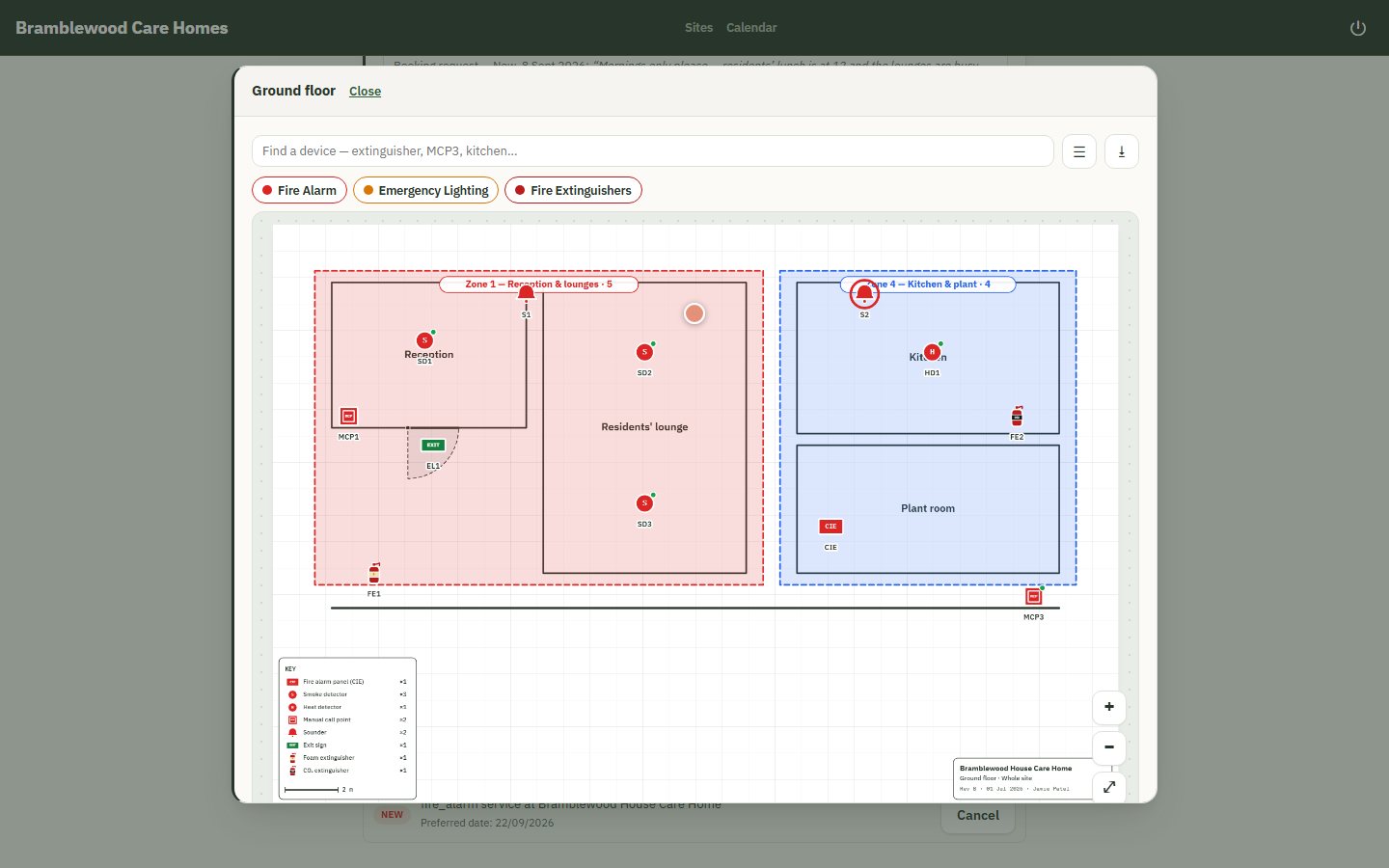
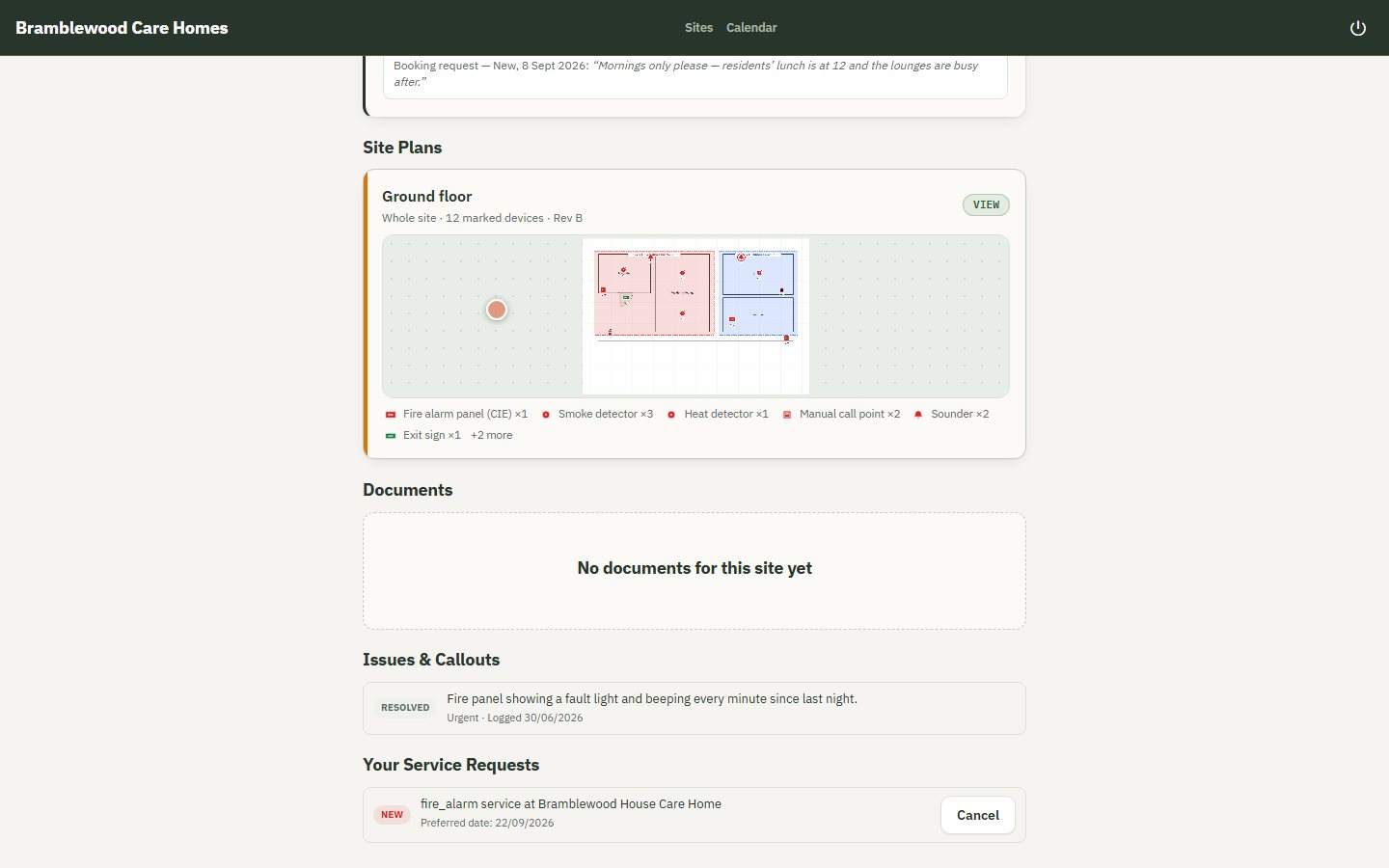
Plans in the portal
The customer sees the same zone plan and 360° photos, read-only.
Who sees what
Three kinds of user, each with exactly what they need
| Role | Can see | Can do | Never sees |
|---|---|---|---|
| Admin | Everything, company-wide: compliance, jobs, callouts, invoices, team performance | Schedule work, assign engineers, raise invoices, invite staff and customers, manage materials | — |
| Engineer | Their jobs, every site and system, plans, certificates, messages | Fill in certificates and reports on site, draw plans, capture 360° photos, mark devices pass/fail | Other companies' data; can't book work in |
| Customer | Their own sites: compliance status, certificates, remedial work, invoices, plans, the site summary | Report an issue, request a booking, approve a quote, sign a certificate | Internal notes, staff messages, draft certificates, anyone else's sites |
See it with your own sites
Book a demo and we'll run this against your own certificates and sites.
30-minute call · we set your company up for you · no self-service sign-up, no card